
Get your first PCs connected.
₱0 to get started
- Basic PC status and session tracking
- One branch, up to three PCs
- No credit card required
YOUR SHOP. WITHIN REACH.
PisoTrack connects your shop PCs to a browser dashboard. Check PC status and sessions from your phone or computer, then decide what needs your attention.
Start with basic monitoring. No credit card required.
In use: a session is running on this example PC.
Illustration only. These controls do not connect to or operate a real PC.
Agent on the PCA small Windows app connects each shop PC.
Dashboard in your browserOpen your account from your phone or PC.
Check the same PCVerify its connection before adding more.
2:15 · English narration · English captions included in the picture · 1080p MP4
FOLLOW THE FULL WALKTHROUGH
A detailed Agent walkthrough with setup, status checks, startup settings, and remote controls. Follow the reference screens, then verify the result on your own PC.
All 9 chapters + written walkthrough →
0:00 PisoTrack Agent connects a shop PC to your web dashboard. This guide uses supplied reference screens to walk through setup, status checks, and everyday controls. Start with one PC before expanding.
0:13 Open the registration page and enter your own name, email, and password. Complete the security check and any account instructions. Sign in to reach the dashboard; keep account credentials private.
0:26 In Branches, add your shop location and rate. Then open PCs, select the branch, and register the computer. Each registered PC receives its own Agent Key. Keep the key matched to that machine.
0:40 Download Agent from its official product page. Choose the installer matching the PC architecture, then complete setup with the required administrator access. Use a supported Windows version and a working internet connection for dashboard sync.
0:56 Paste that PC’s Agent Key into the setup window. Advanced Settings contains the API address; use your intended PisoTrack server. Select Connect and wait for validation. Do not reuse another shop PC’s key.
1:11 The connected screen identifies the PC and shows its current status, session, and configured rate. The values here are a reference example. Open your dashboard and verify the same PC, rather than relying on the example numbers.
1:27 Check Start with Windows if this PC should reconnect after sign-in. Agent also appears in the system tray. After restarting during maintenance, confirm that the app is running and its dashboard status updates.
1:41 Open the target PC’s actions in the dashboard. You can request a message, screenshot, or available remote session. Confirm the machine first. Restart, shutdown, and log off interrupt customers, so use them during an appropriate maintenance window.
1:58 If the PC stays offline, check its key, server address, internet connection, and whether Agent is running. Record the specific error before asking for help. Your first milestone is one real PC verified in both Agent and the dashboard.
EIGHT PRODUCTS. PRACTICAL WALKTHROUGHS.
Detailed reference-screen guides with chapter navigation, English narration, captions, and written steps. Videos load when you choose to play them.
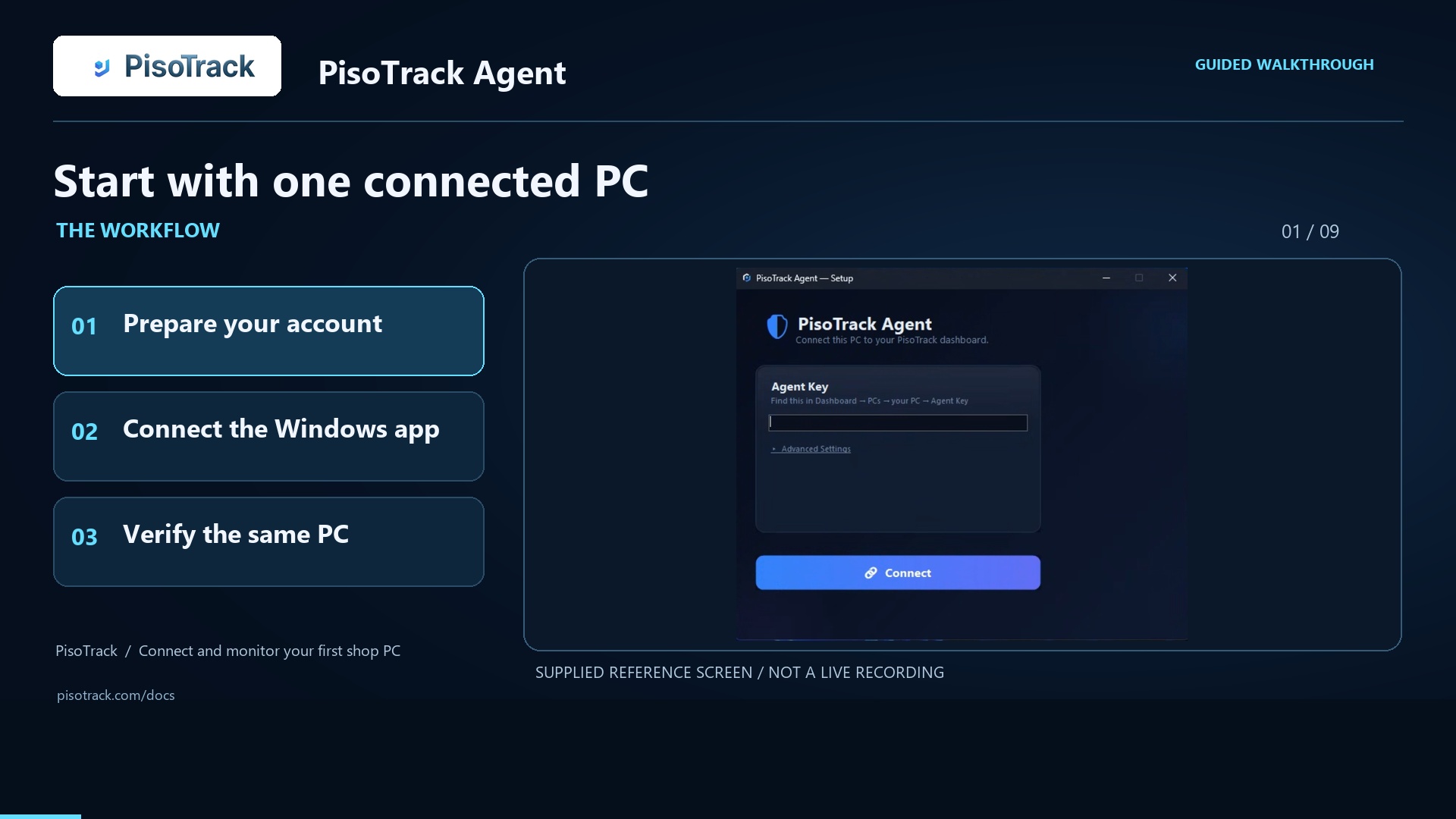
Connect and monitor your first shop PC.
Watch the walkthrough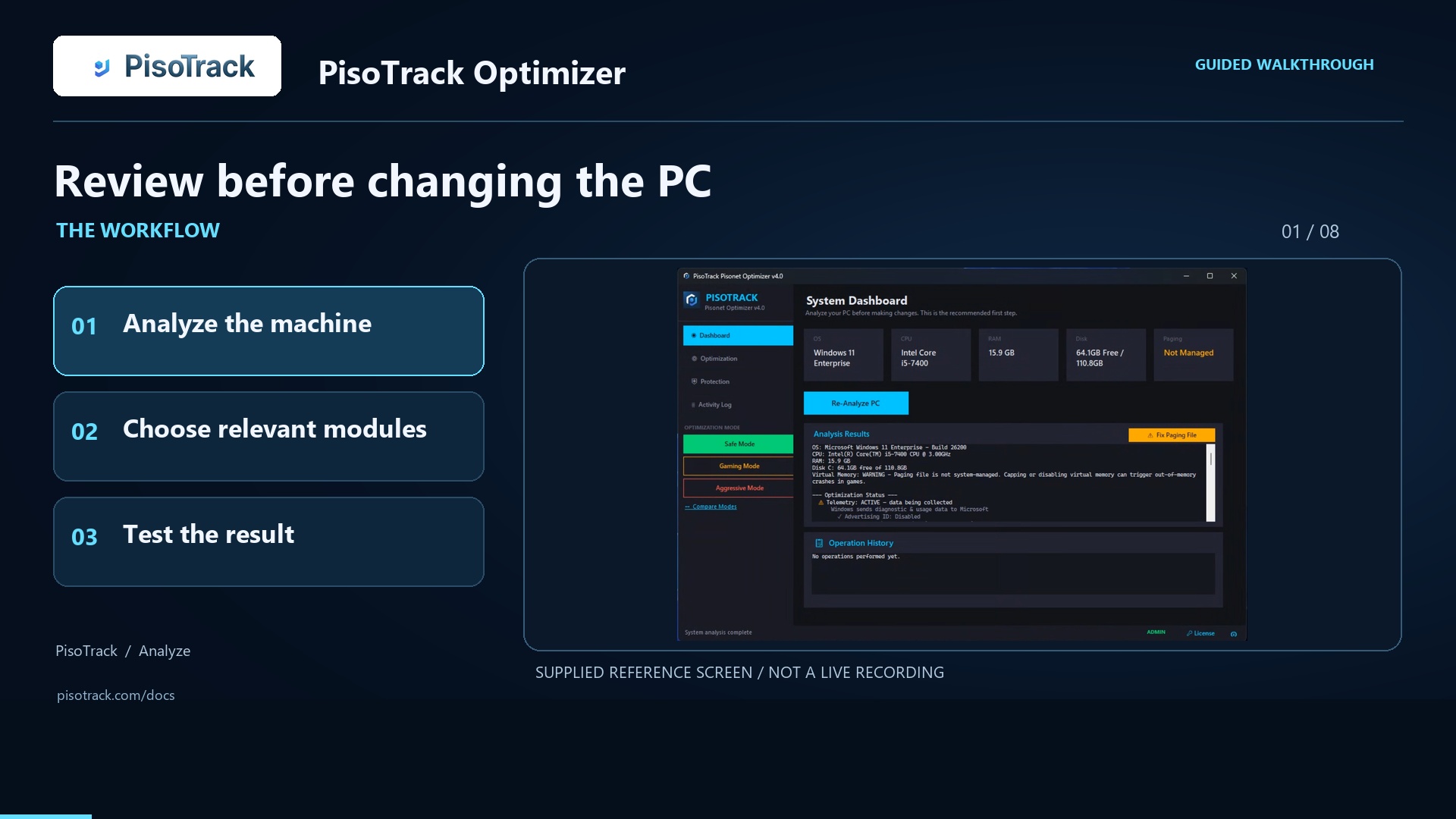
Analyze, select, apply, and verify changes.
Watch the walkthrough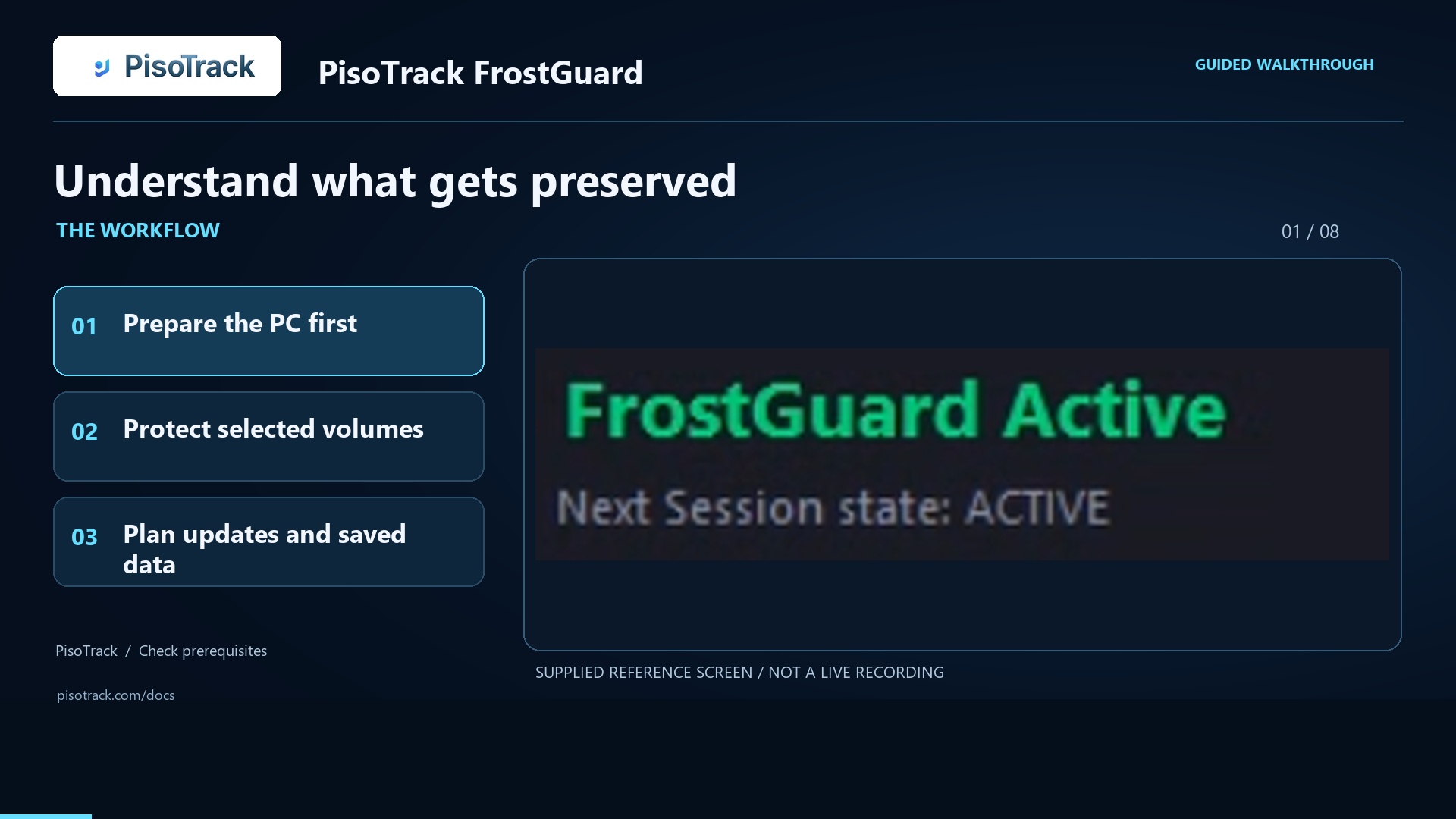
Prepare protection, exclusions, and maintenance.
Watch the walkthrough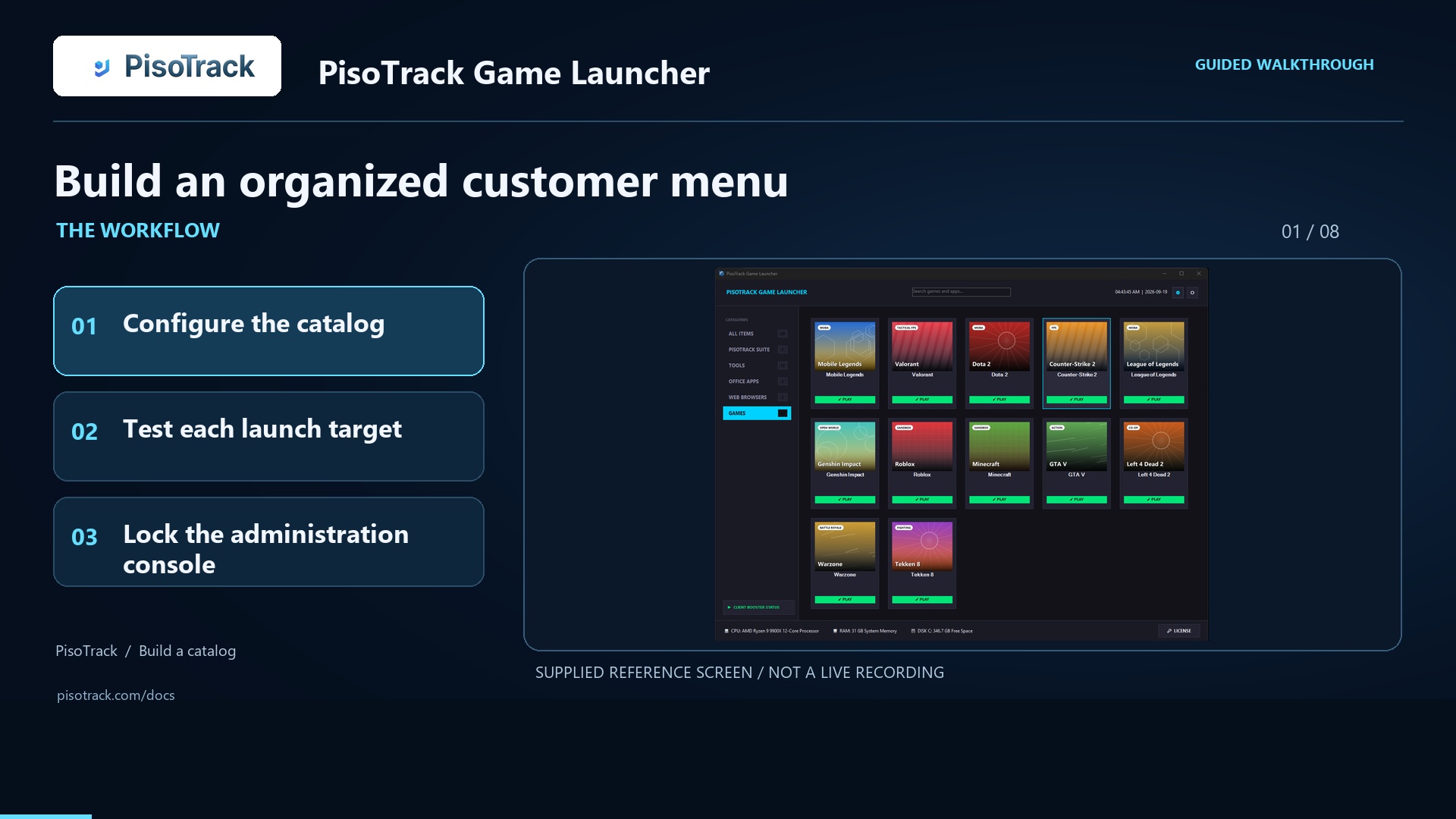
Build a catalog and manage the customer menu.
Watch the walkthrough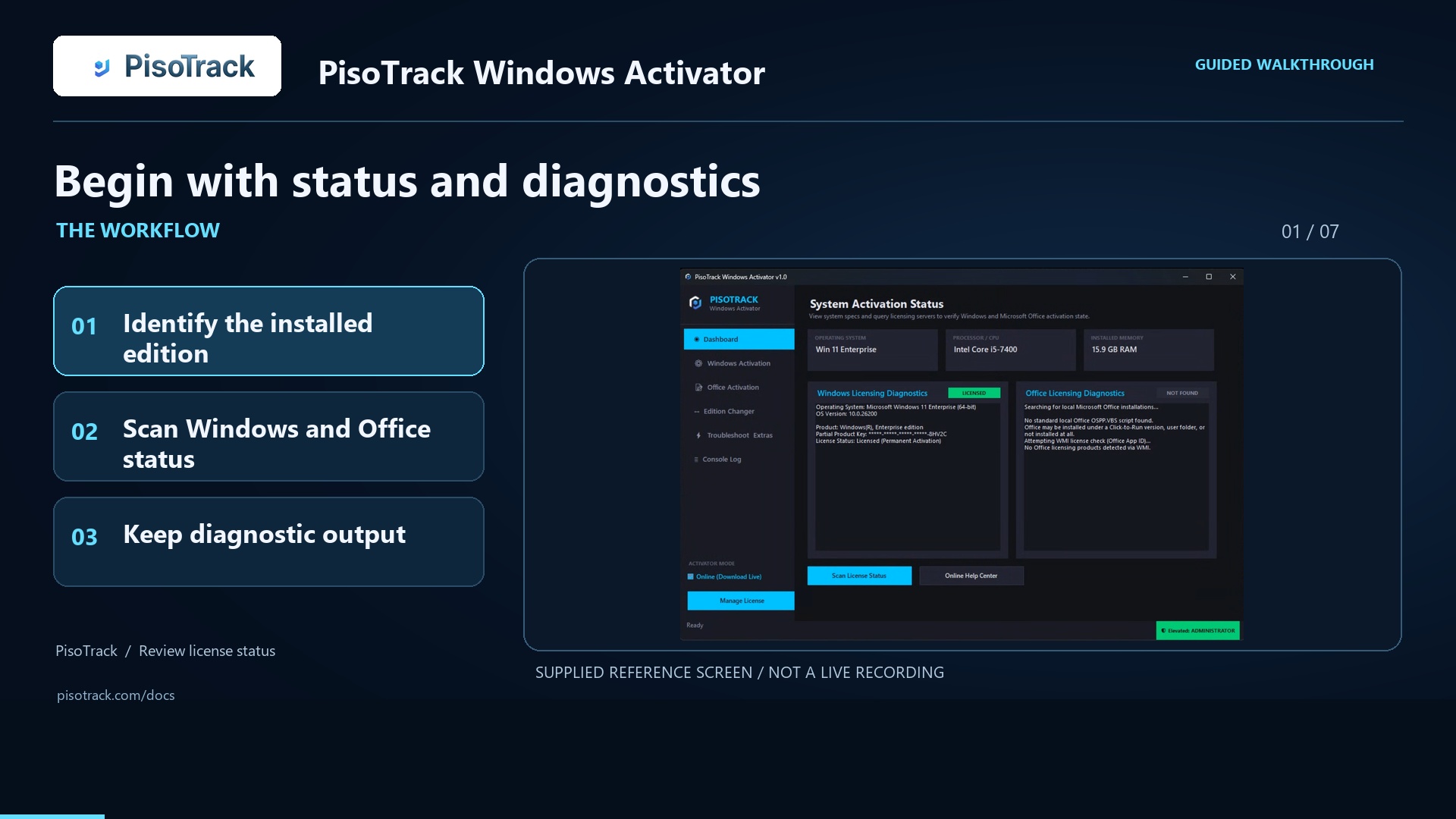
Review license status and diagnostic results.
Watch the walkthrough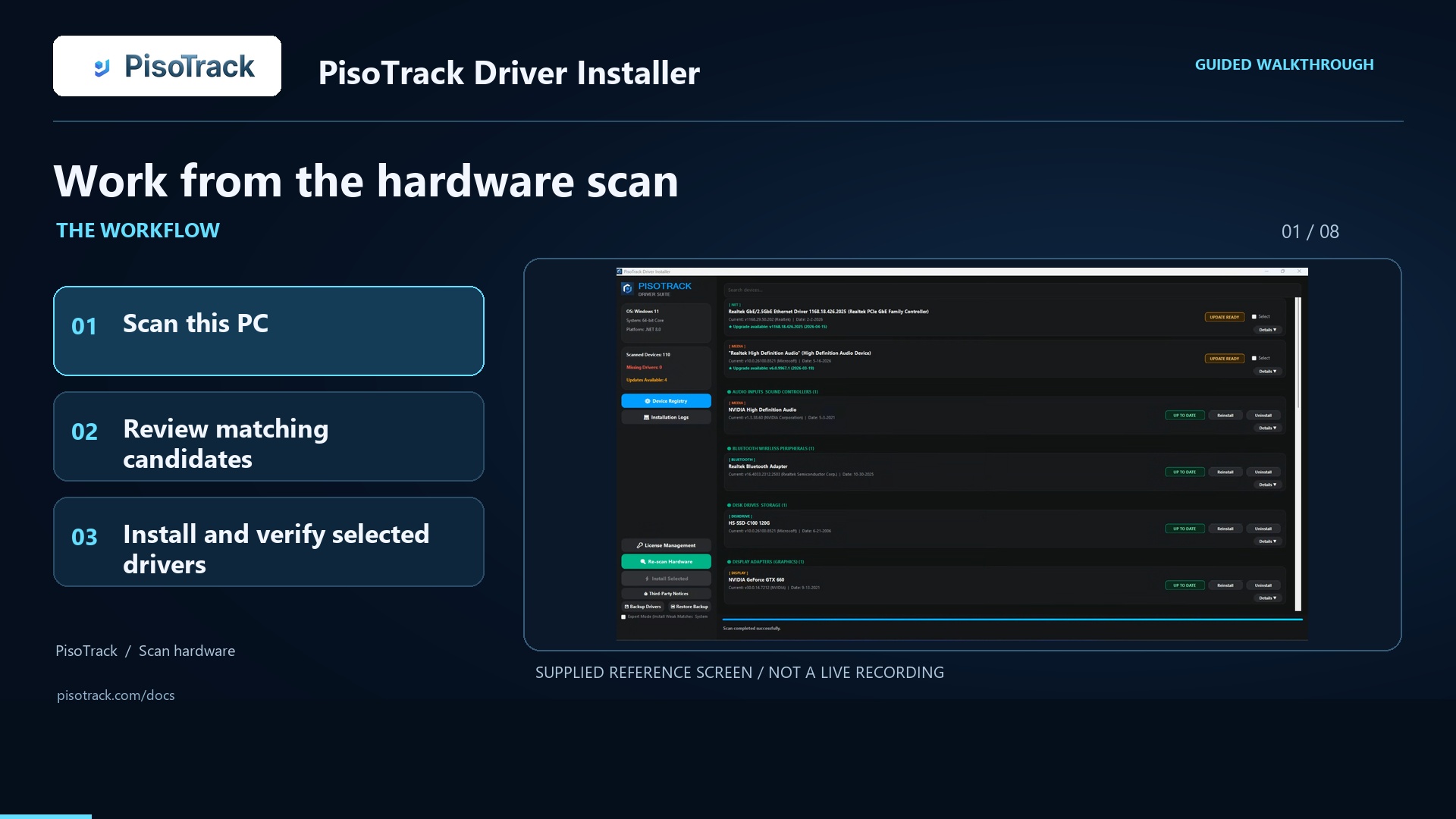
Scan hardware and verify selected driver changes.
Watch the walkthrough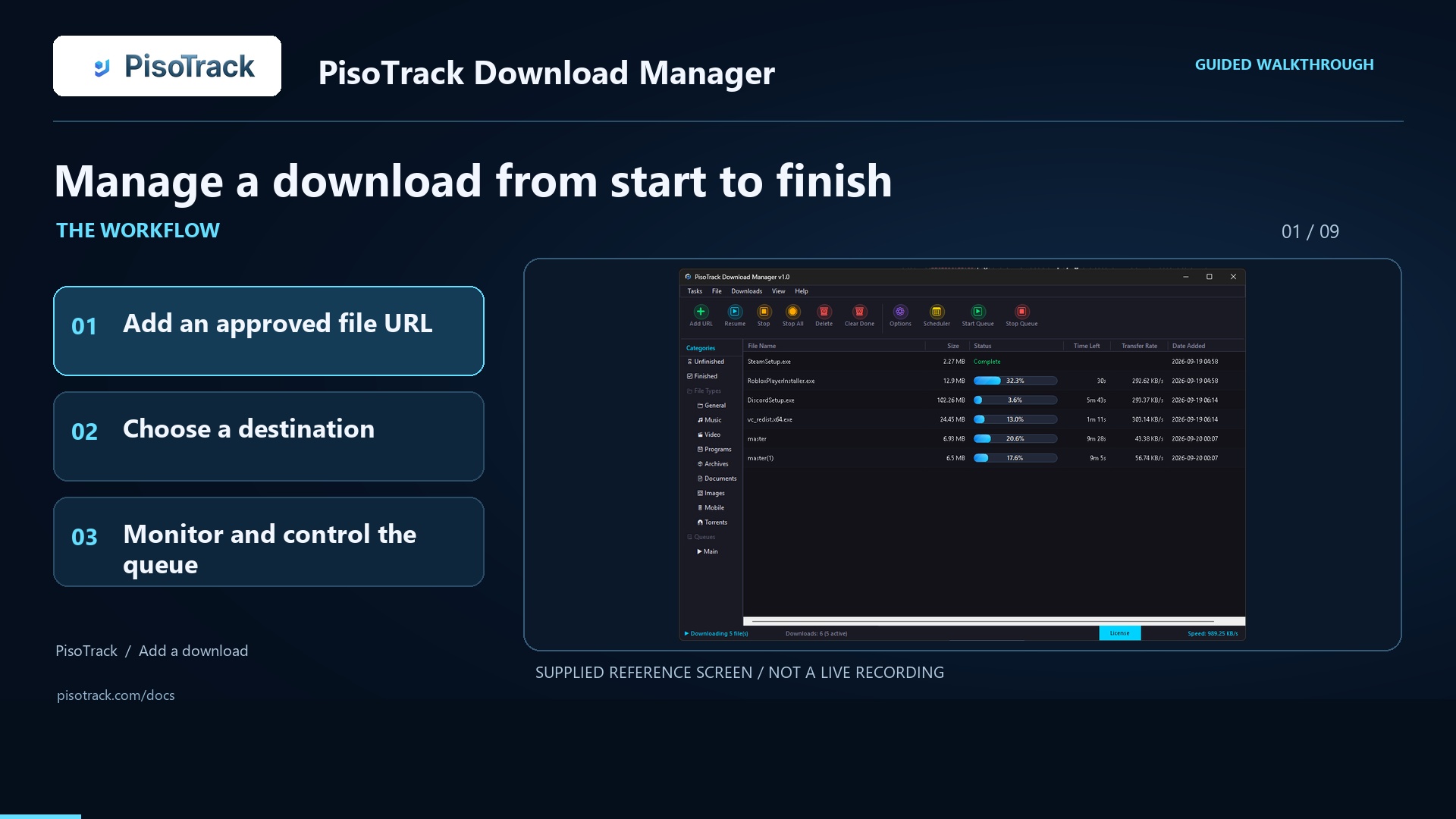
Add files, manage the queue, and verify downloads.
Watch the walkthrough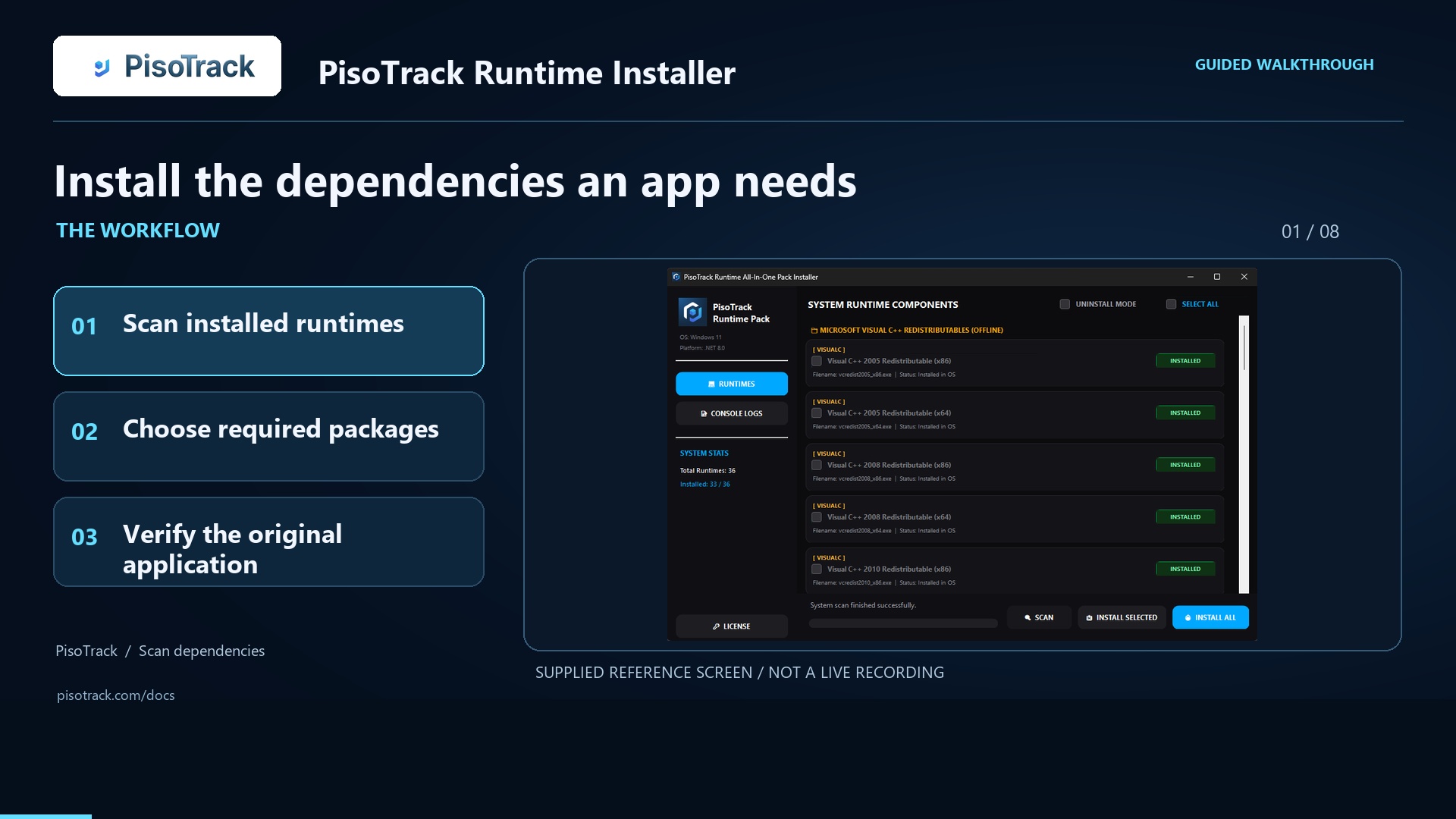
Select dependencies and verify the original application.
Watch the walkthroughSTART WITH WHAT YOU NEED
You can begin with the free plan and review paid features separately.
₱0 to get started
₱199 per month
Agent, Optimizer, FrostGuard, Game Launcher, Windows Activator, Driver Installer, Download Manager, and Runtime Installer.
Check current coverage, limits, and feature availability before expanding your shop.
Review current plans ↗A FEW THINGS TO KNOW
Yes. Open your PisoTrack dashboard in your phone’s browser. Agent runs on the Windows shop PC; you do not install the Windows Agent on your phone.
No. This page and its video use reference examples. Your own PC appears in your signed-in dashboard after you install and connect Agent.
Internet is needed for cloud synchronization. If a PC disconnects, verify the Agent and internet connection before relying on an older dashboard status.
Agent supports Windows 10 version 1607 or newer and Windows 11. Windows 7 and Windows 8.1 are unsupported. You need administrator access to install it.
MAKE IT REAL
Guides reviewed 24 September 2026. Check current plans before subscribing. Walkthroughs use reference screenshots; they do not show your own connected PC.